To keep my web design accessible for everyone I included a number of features in order to create a fully inclusive user experience.
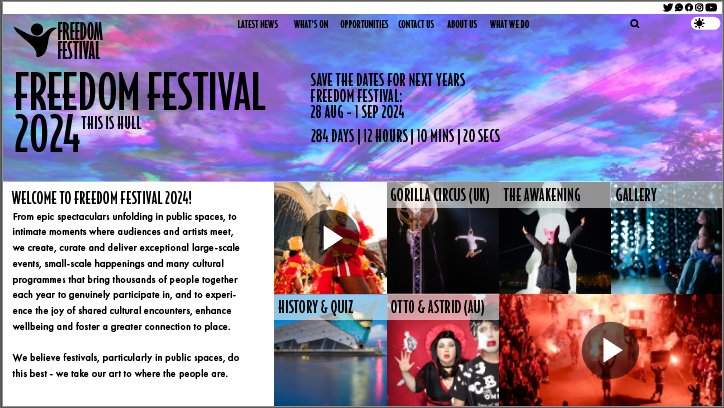
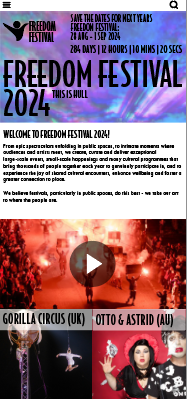
To begin with, my first accessibility idea was to include a dark/ light mode button, this was added for those who may struggle to read either black or white writing or may struggle to read on either dark or bright screens. I recoloured the light mode version of the web page in a simple and clean way by simple making the text black and switching to a white background in order to keep it clear and easy to read, keeping a clear contrast between background and text. Any text that is placed over an image I simple added a white block behind and lowered the opacity so that the image can still be seen underneath whilst still making the text readable. I added a button at the top right hand side of the webpage which stands out so that it is easy to find and use and can be simply changed with one click keeping a pleasant user experience.
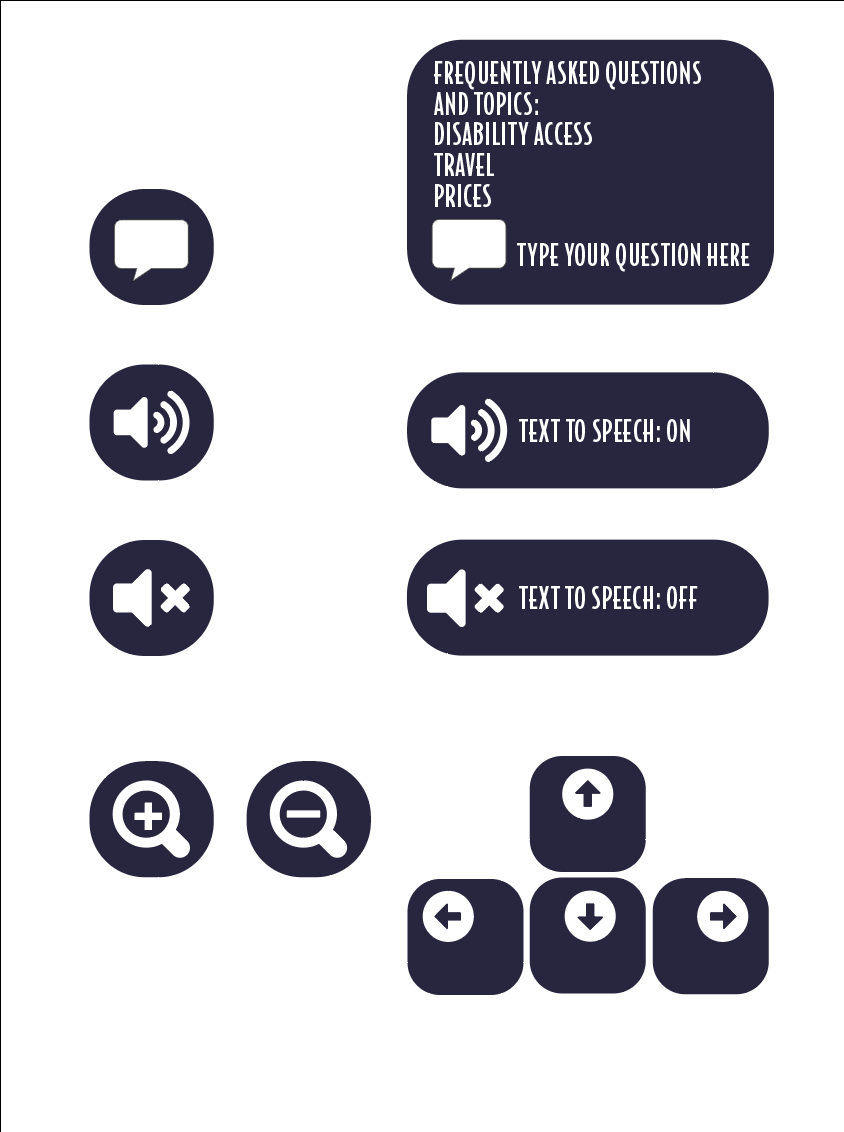
Above are a few buttons that I have created that will be placed on the webpage. Firstly, is a chatbot button where the user can ask a question they like and would receive the best answer that can be provided, I included a few topics such as disabled access to show that is one of the priorities of the festival, which is to ensure everyone feels welcomed.
Secondly, I have created a text to speech button, which when entering the site will be turned on by default so that those who may be visually impaired won’t struggle to find it and turn it on, this feature I added as I found that a lot of websites you visit today lack key features like this and so my thought process was to include as much new features as possible to create a more modern and unique feel to the webpage, the buttons are designed with a clear contrast so that they stand out more and are clear to find. Another button I am going to include within my site is a zoom in and out button, this button will be effective as it allows the user to either zoom in on text and key information they may be struggling to read or it can be used to either zoom in on a photo for example so they can see it closer up, or if a video is playing for example they could zoom in on a pacific part of the video.
Finally, another feature and button/ icons I added are the keyboard buttons, this I added to indicate to the user that the website can be browsed with just a keyboard by pressing the arrow keys, this I decided to include for those who may struggle with mobility in their hands and who may struggle to use a mouse or trackpad.